> ## Documentation Index
> Fetch the complete documentation index at: https://docs.hyra.io/llms.txt
> Use this file to discover all available pages before exploring further.
# Activity Tracking
> Hyra's automatic activity tracking feature allows you to track activity from your staff.
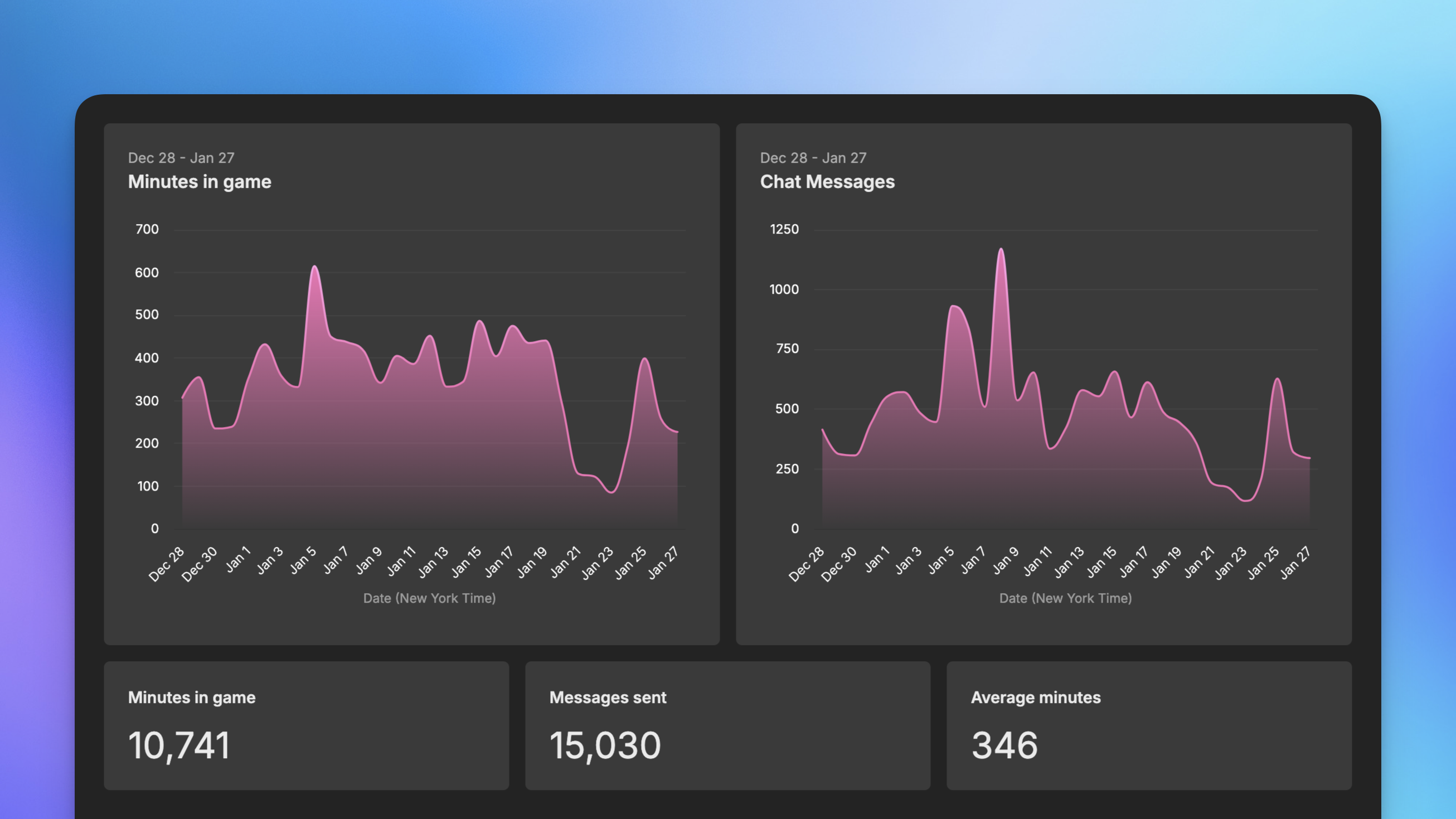 ## View your Activity
You can view your Activity by going to [https://app.hyra.io](https://app.hyra.io) and navigating to your Workspace. From there, click the Activity clock icon in the side navigation.
## View your Activity
You can view your Activity by going to [https://app.hyra.io](https://app.hyra.io) and navigating to your Workspace. From there, click the Activity clock icon in the side navigation.
## Setting up
Our activity tracking can be installed in a few simple steps. The system will automatically track when your team join and leave the game, as well as some handy metrics.
Before you continue, make sure you have [enabled the
HttpService](https://create.roblox.com/docs/en-us/reference/engine/classes/HttpService#:~:text=Enabling%20HTTP%20Requests,with%20at%20runtime.)
in your game's security settings.
To acquire your unique activity tracking loader script, go to the Activity
Tracking settings page. This can be found in Settings > Activity Tracking.
You can either generate a loader script, or if it has already been
generated, download it. It will download as a Roblox Studio game.
Once the file has been downloaded, open it in Roblox studio.
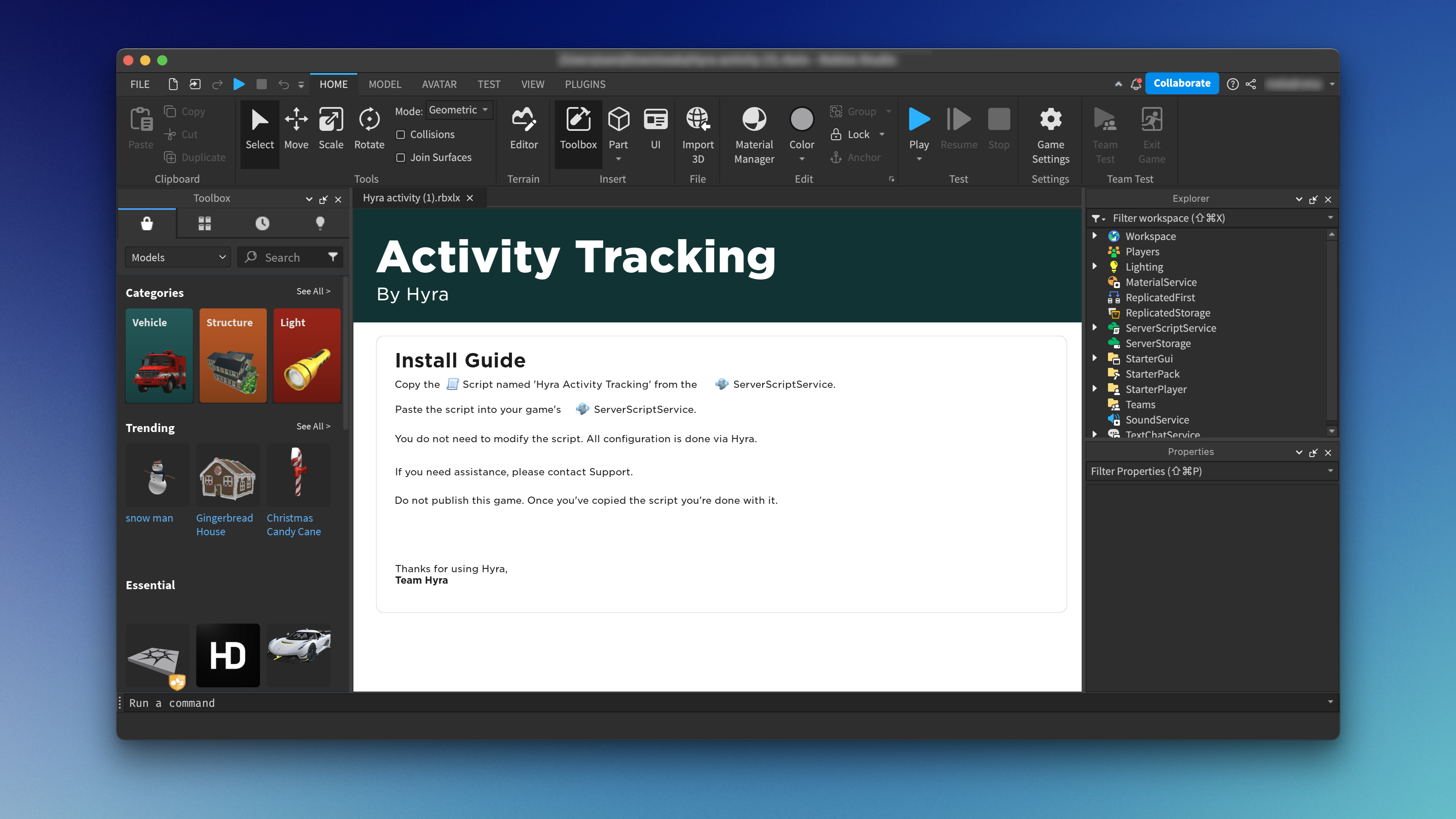 **Copy the script from the template file into your game**. You can do this by right clicking the script, clicking Copy.
Once you have copied it, **paste it into your game's ServerScriptService**.
**Copy the script from the template file into your game**. You can do this by right clicking the script, clicking Copy.
Once you have copied it, **paste it into your game's ServerScriptService**.
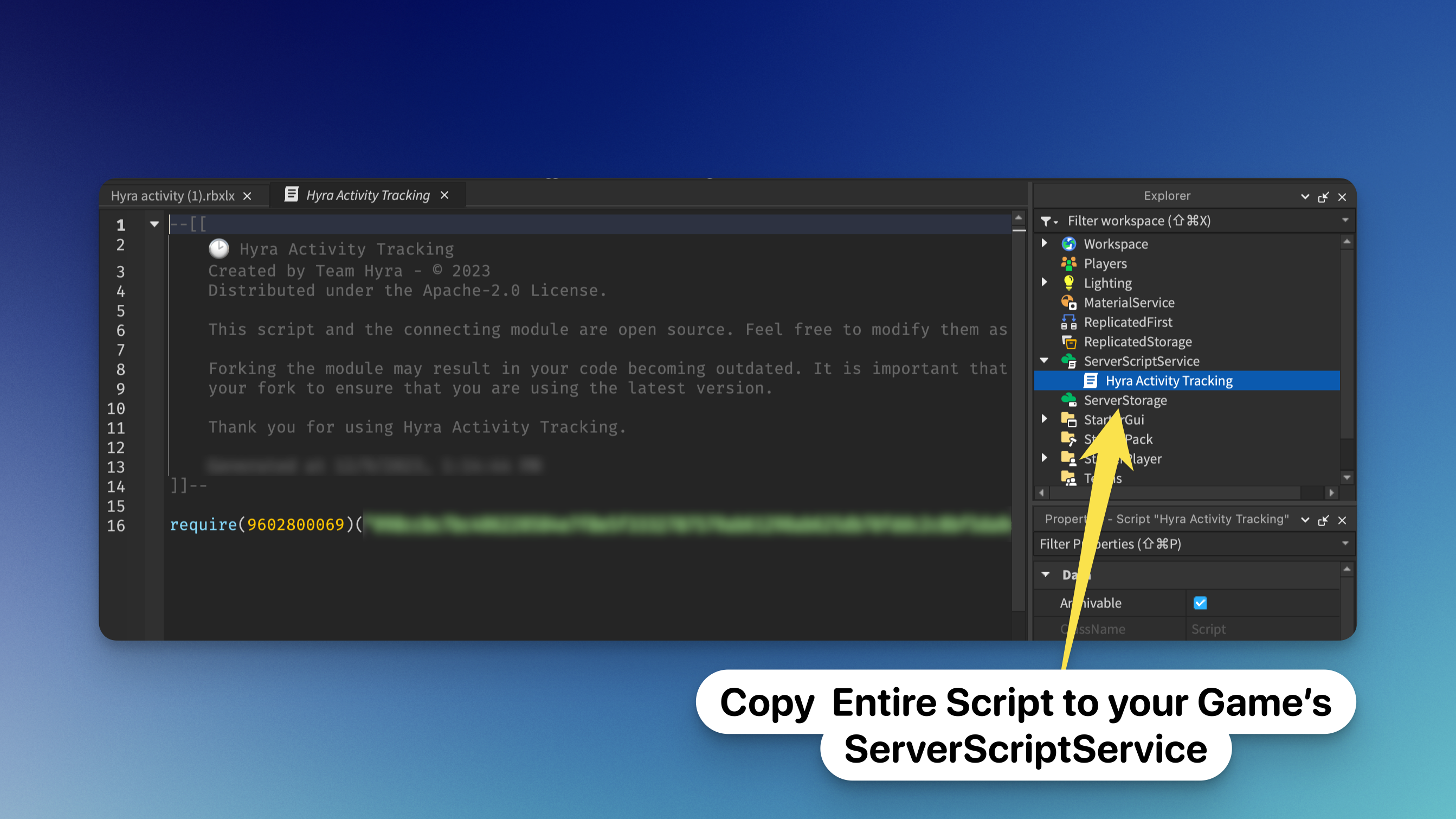 Once the script has been added to the ServerScriptService of your game, publish the game to Roblox.
Activity will begin tracking on your specified roles once the game has been published and servers have been restarted or created.
## Debugging issues
If you are having issues with the activity tracking, please check the following:
* Make sure you have enabled the HttpService in your game's security settings.
* Make sure you have copied the script into your game's ServerScriptService.
* Make sure you have published your game to Roblox.
* Make sure you have restarted or created a new server.
If you are still having issues, please contact us at [team@hyra.io](mailto:team@hyra.io)
Once the script has been added to the ServerScriptService of your game, publish the game to Roblox.
Activity will begin tracking on your specified roles once the game has been published and servers have been restarted or created.
## Debugging issues
If you are having issues with the activity tracking, please check the following:
* Make sure you have enabled the HttpService in your game's security settings.
* Make sure you have copied the script into your game's ServerScriptService.
* Make sure you have published your game to Roblox.
* Make sure you have restarted or created a new server.
If you are still having issues, please contact us at [team@hyra.io](mailto:team@hyra.io)