> ## Documentation Index
> Fetch the complete documentation index at: https://docs.hyra.io/llms.txt
> Use this file to discover all available pages before exploring further.
# Discord
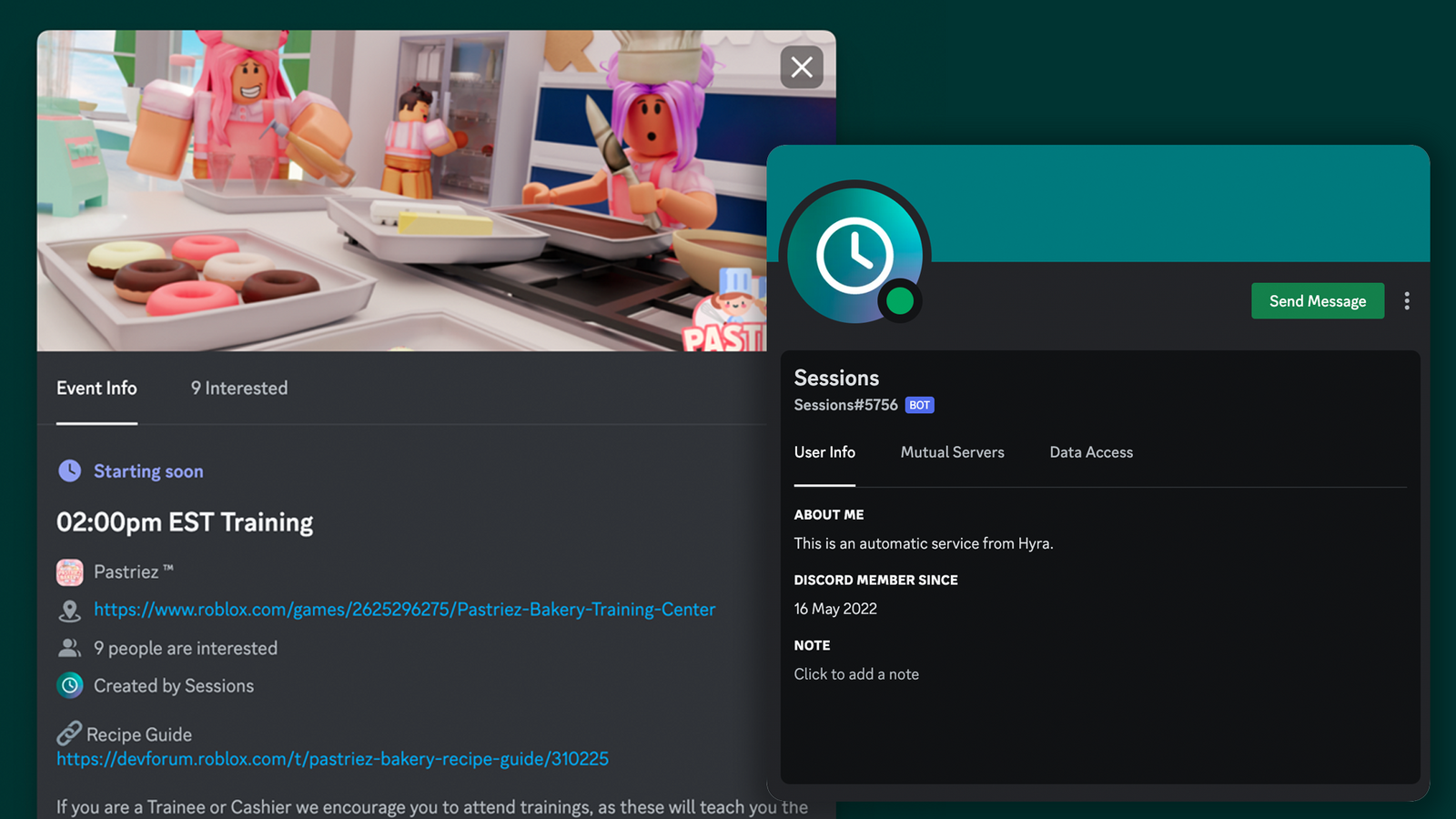 Hyra's Sessions feature allows you to automatically create events in your Discord server to let people know when your next session is.
## Setting up
Before you continue, make sure you have the Workspace Admin permission in your Hyra workspace and Manage Server permission in your Discord Server.
To go to the Discord integration settings page, go to Workspace Settings > Sessions > Discord Integration.
Click the button Connect to Discord and follow the instructions the same way.
Once the bot has been added to the server, go to Workspace Settings > Sessions and enable Create Discord Events located below the lock function.
## Troubleshooting
For Hyra to create events in your Discord server, each session must have a Roblox.com game link attached to it, and have Create Discord Events enabled. Hyra will only create events for sessions in the next 24 hours.
It can take up to 15 minutes for the events to appear in your Discord server. If they still haven't appeared after 15 minutes, make sure the bot has the correct permissions, the events have a Roblox.com game link attached to them, and that the Create Discord Events option is enabled. If you're still having issues, contact our support team.
Hyra's Sessions feature allows you to automatically create events in your Discord server to let people know when your next session is.
## Setting up
Before you continue, make sure you have the Workspace Admin permission in your Hyra workspace and Manage Server permission in your Discord Server.
To go to the Discord integration settings page, go to Workspace Settings > Sessions > Discord Integration.
Click the button Connect to Discord and follow the instructions the same way.
Once the bot has been added to the server, go to Workspace Settings > Sessions and enable Create Discord Events located below the lock function.
## Troubleshooting
For Hyra to create events in your Discord server, each session must have a Roblox.com game link attached to it, and have Create Discord Events enabled. Hyra will only create events for sessions in the next 24 hours.
It can take up to 15 minutes for the events to appear in your Discord server. If they still haven't appeared after 15 minutes, make sure the bot has the correct permissions, the events have a Roblox.com game link attached to them, and that the Create Discord Events option is enabled. If you're still having issues, contact our support team.