> ## Documentation Index
> Fetch the complete documentation index at: https://docs.hyra.io/llms.txt
> Use this file to discover all available pages before exploring further.
# Trello
 Using Hyra's Trello Integration, you can sync information from Trello card comments onto Hyra, such as warnings, suspensions, demotions, terminations and notes. The system works by matching your card comments onto Hyra using regular expression.
If you're fully Hyra for your logbook, you won't need this feature - it's only for those who have a hybrid setup.
Rules are applied going forward to new comments, and will not be applied retrospectively.
## Linking your Trello Board
To continue, you'll need the following permission: Workspace Admin
First, connect your Trello account to your workspace. Please do note that you'll only need one Trello account to link your whole workspace.
Once you've connected your Trello account, you'll then need to select the board to link it to your workspace.
Once the cards have been processed, the system will show if they've found a match. If they matched the same person, click the button below.
Using Hyra's Trello Integration, you can sync information from Trello card comments onto Hyra, such as warnings, suspensions, demotions, terminations and notes. The system works by matching your card comments onto Hyra using regular expression.
If you're fully Hyra for your logbook, you won't need this feature - it's only for those who have a hybrid setup.
Rules are applied going forward to new comments, and will not be applied retrospectively.
## Linking your Trello Board
To continue, you'll need the following permission: Workspace Admin
First, connect your Trello account to your workspace. Please do note that you'll only need one Trello account to link your whole workspace.
Once you've connected your Trello account, you'll then need to select the board to link it to your workspace.
Once the cards have been processed, the system will show if they've found a match. If they matched the same person, click the button below.
 For them to match, be sure to have their Username or User ID as the title of the card. You are free to add any prefixes like \[MR] or \[HR].
## Creating an Action
Once you've linked your Trello board to your Hyra workspace, it's now time to create an action. These will instruct the system on what to do once a comment has been made to a card.
To continue, you'll need the following permission: Workspace Admin
In the action editor, click Create an Action to create an action.
First confgure the action trigger. If a specific keyword has been sent, it will trigger the action. It uses regex to identify if the comment contains the specified word/sentence.
Here are some tips to help you set it correctly!
* Use [regex101.com](https://regex101.com/) to check if it correctly identifies the trigger.
* Be sure to have `^` and `$` on your trigger. Don't worry, you don't need to put ^ or \$ on your comments.
* If you have comments that is set to markdown (like Bold text), be sure to put a backslash on every syntax. Example: `\*\*Promotion\*\*`
Once you have a trigger, time to configure the action. To create one, select Add action and it should show on the right or bottom of the trigger.
Then, select what type of log will be created. For logging warnings, you have more choices to select!
For them to match, be sure to have their Username or User ID as the title of the card. You are free to add any prefixes like \[MR] or \[HR].
## Creating an Action
Once you've linked your Trello board to your Hyra workspace, it's now time to create an action. These will instruct the system on what to do once a comment has been made to a card.
To continue, you'll need the following permission: Workspace Admin
In the action editor, click Create an Action to create an action.
First confgure the action trigger. If a specific keyword has been sent, it will trigger the action. It uses regex to identify if the comment contains the specified word/sentence.
Here are some tips to help you set it correctly!
* Use [regex101.com](https://regex101.com/) to check if it correctly identifies the trigger.
* Be sure to have `^` and `$` on your trigger. Don't worry, you don't need to put ^ or \$ on your comments.
* If you have comments that is set to markdown (like Bold text), be sure to put a backslash on every syntax. Example: `\*\*Promotion\*\*`
Once you have a trigger, time to configure the action. To create one, select Add action and it should show on the right or bottom of the trigger.
Then, select what type of log will be created. For logging warnings, you have more choices to select!
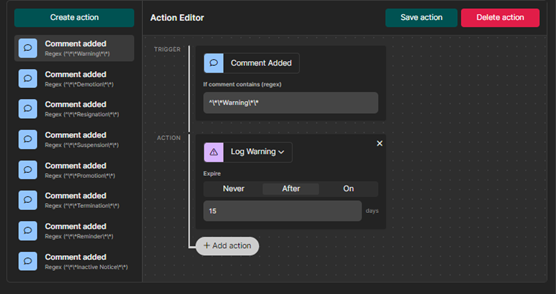 Once done, hit Save action to save your action.
### Stackable Actions
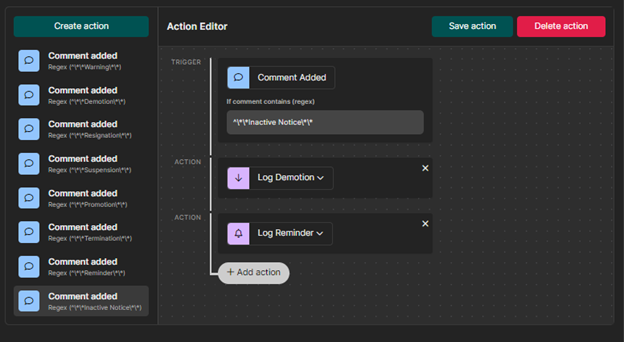
You can also stack actions too! You can mix and match on any of the actions based on your use-case!
Once done, hit Save action to save your action.
### Stackable Actions
You can also stack actions too! You can mix and match on any of the actions based on your use-case!
 ## Triggering the Action
Once everything has been set up, it's time to test it out!
To continue, you'll need to be a member or admin of the Trello Board and have the permission View Logbook and Post to Logbook.
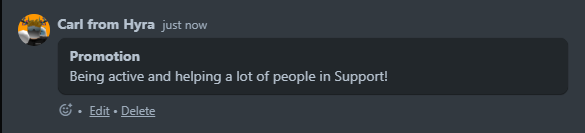
You can do this to any of your staff's card. Just post a comment with the specific trigger.
## Triggering the Action
Once everything has been set up, it's time to test it out!
To continue, you'll need to be a member or admin of the Trello Board and have the permission View Logbook and Post to Logbook.
You can do this to any of your staff's card. Just post a comment with the specific trigger.
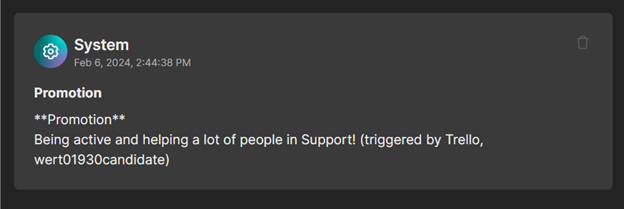
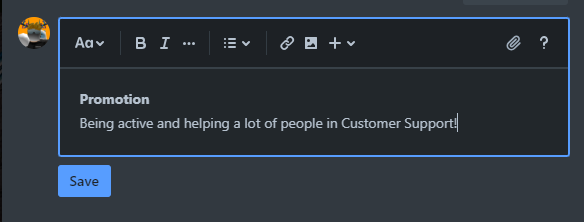 If the system detects the trigger word via Regex, it should create a logbook log.
 It will also show `(triggered by Trello, {Trello Username})` to signify that it was created via the Trello Integration.
 Once the triggers and actions has been correctly set up, time to clean the logbook! Be sure to delete the test cards (especially the warning entries) to clean your or an other's staff logbook!
## Unlinking a Board
If you've accidentally chose the wrong board, don't worry. Just select if it allows you to, and click Unlink board below the board's photo and name.
Once the triggers and actions has been correctly set up, time to clean the logbook! Be sure to delete the test cards (especially the warning entries) to clean your or an other's staff logbook!
## Unlinking a Board
If you've accidentally chose the wrong board, don't worry. Just select if it allows you to, and click Unlink board below the board's photo and name.