> ## Documentation Index
> Fetch the complete documentation index at: https://docs.hyra.io/llms.txt
> Use this file to discover all available pages before exploring further.
# Categories
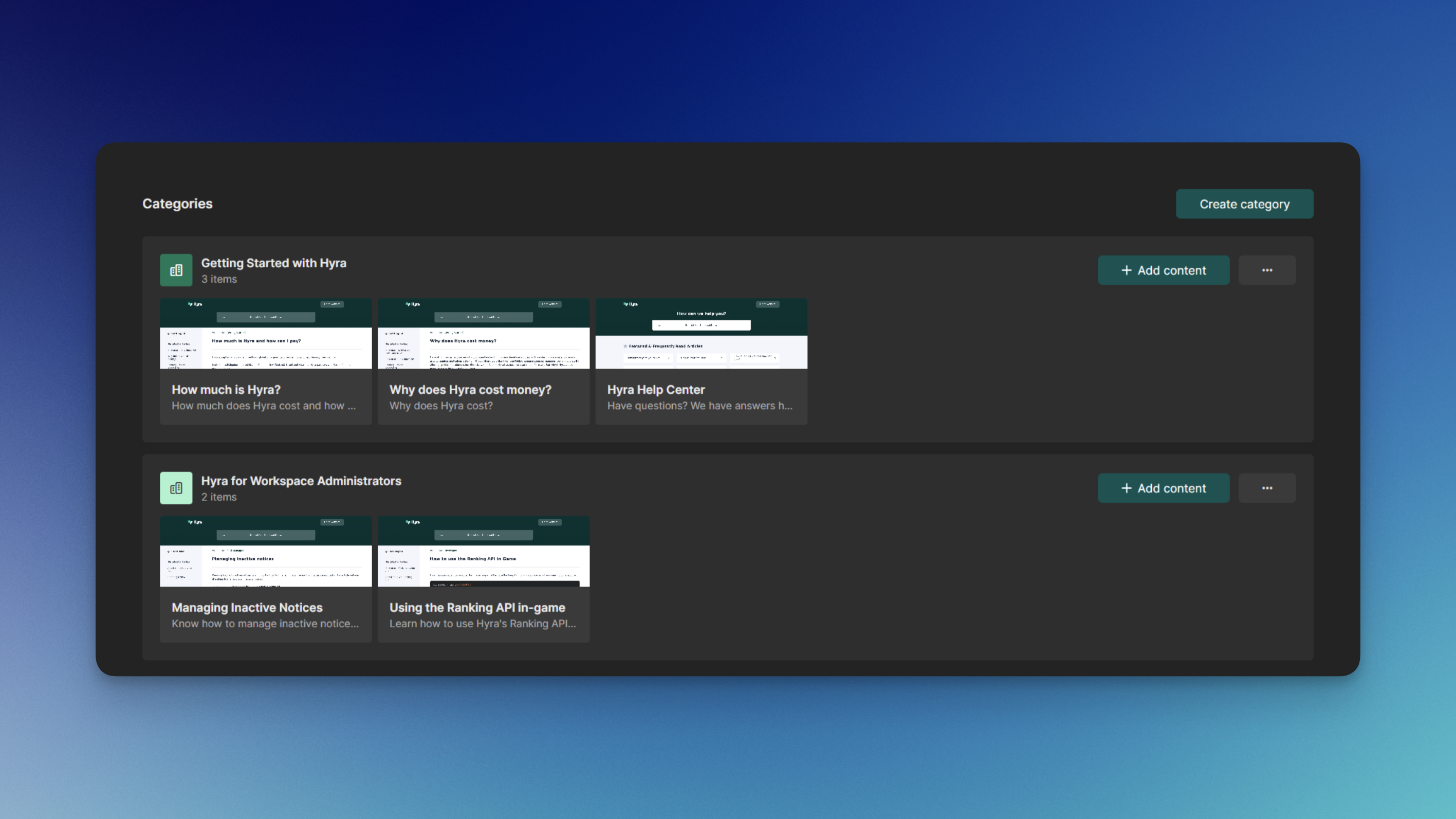 Categories allow you to categorize your content in your Knowledge Base. From locking content to only a handful of people, you can use it for confidential documents that you don't really want someone to have access to.
## Creating Categories
To create a category, follow the steps below:
In order to do this, you must have the following permissions: View Knowledge and Update Knowledge
Firstly, navigate to the Categories page by going to Knowledge > Categories
To create a Category, hit Create Category and a popout should appear.
Configure the category, from giving it a name, icon, color, and choosing the access.
If you've set up the access as Restricted, you'll need to select which roles will have access to the category on the next popout.
## Featuring Categories
You can feature categories that you want everyone to read and show them in the front page!
To do this, simply click the three dots and select Feature Category.
Categories allow you to categorize your content in your Knowledge Base. From locking content to only a handful of people, you can use it for confidential documents that you don't really want someone to have access to.
## Creating Categories
To create a category, follow the steps below:
In order to do this, you must have the following permissions: View Knowledge and Update Knowledge
Firstly, navigate to the Categories page by going to Knowledge > Categories
To create a Category, hit Create Category and a popout should appear.
Configure the category, from giving it a name, icon, color, and choosing the access.
If you've set up the access as Restricted, you'll need to select which roles will have access to the category on the next popout.
## Featuring Categories
You can feature categories that you want everyone to read and show them in the front page!
To do this, simply click the three dots and select Feature Category.