> ## Documentation Index
> Fetch the complete documentation index at: https://docs.hyra.io/llms.txt
> Use this file to discover all available pages before exploring further.
# Creating Content
 ## Uploading and Linking Content
Uploading your files and content to Hyra couldn't be easier. To get started, you'll first need to create a category. A guide to creating categories can be found on the next article.
In order to do this, you must have the following permissions: View Knowledge and Update Knowledge
To add content to your Knowledge Base, go to Knowledge.
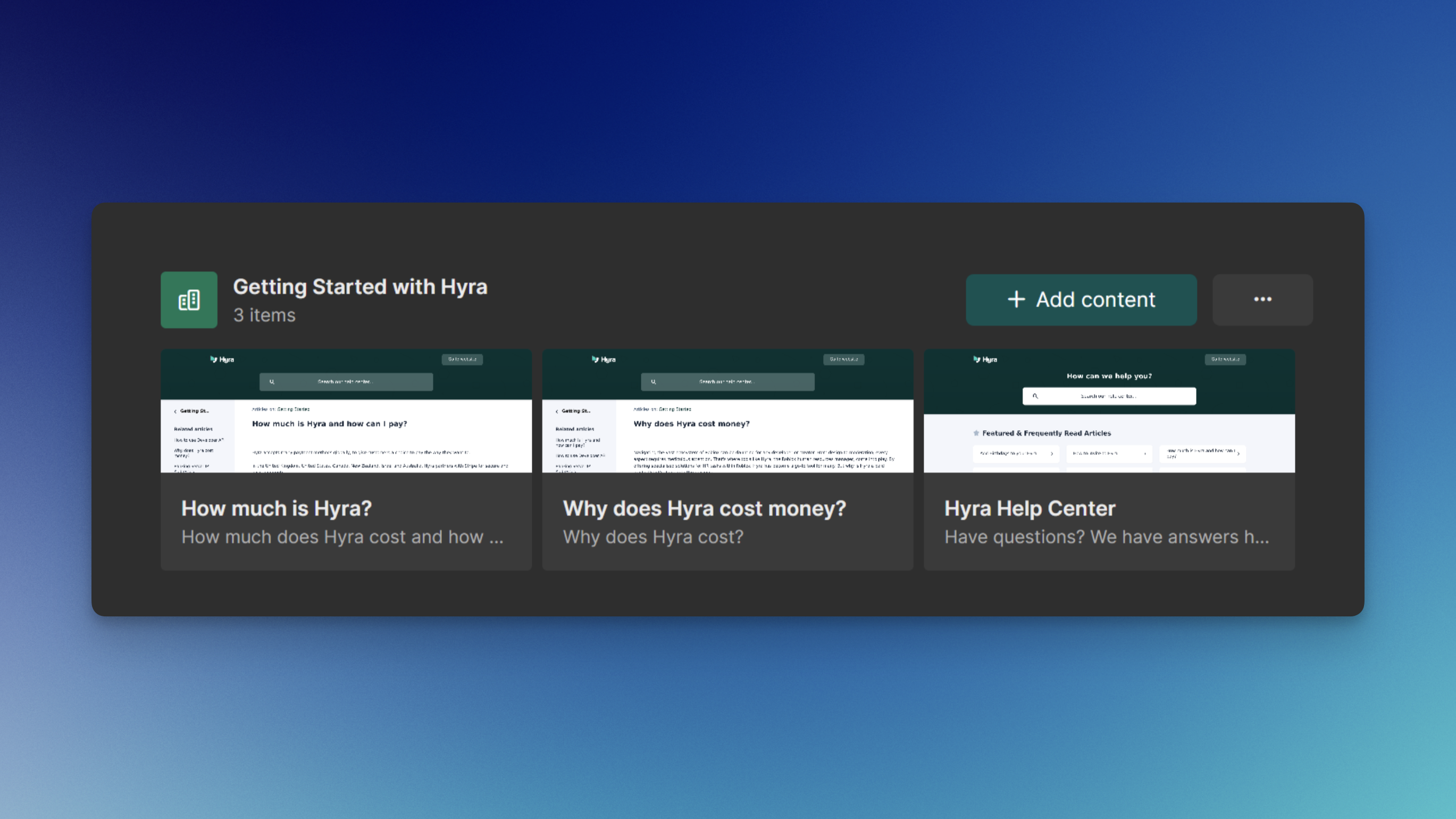
Select the category that you want to add content and click "Add Content". This will open up a menu where you can select if you want to upload or link a file.
## Uploaded Files vs. Linked Files
An uploaded file is stored on Hyra's file servers, whereas a linked file is external, such as a Google Doc or YouTube video.
## Uploading and Linking Content
Uploading your files and content to Hyra couldn't be easier. To get started, you'll first need to create a category. A guide to creating categories can be found on the next article.
In order to do this, you must have the following permissions: View Knowledge and Update Knowledge
To add content to your Knowledge Base, go to Knowledge.
Select the category that you want to add content and click "Add Content". This will open up a menu where you can select if you want to upload or link a file.
## Uploaded Files vs. Linked Files
An uploaded file is stored on Hyra's file servers, whereas a linked file is external, such as a Google Doc or YouTube video.