> ## Documentation Index
> Fetch the complete documentation index at: https://docs.hyra.io/llms.txt
> Use this file to discover all available pages before exploring further.
# Promotion Recommendation
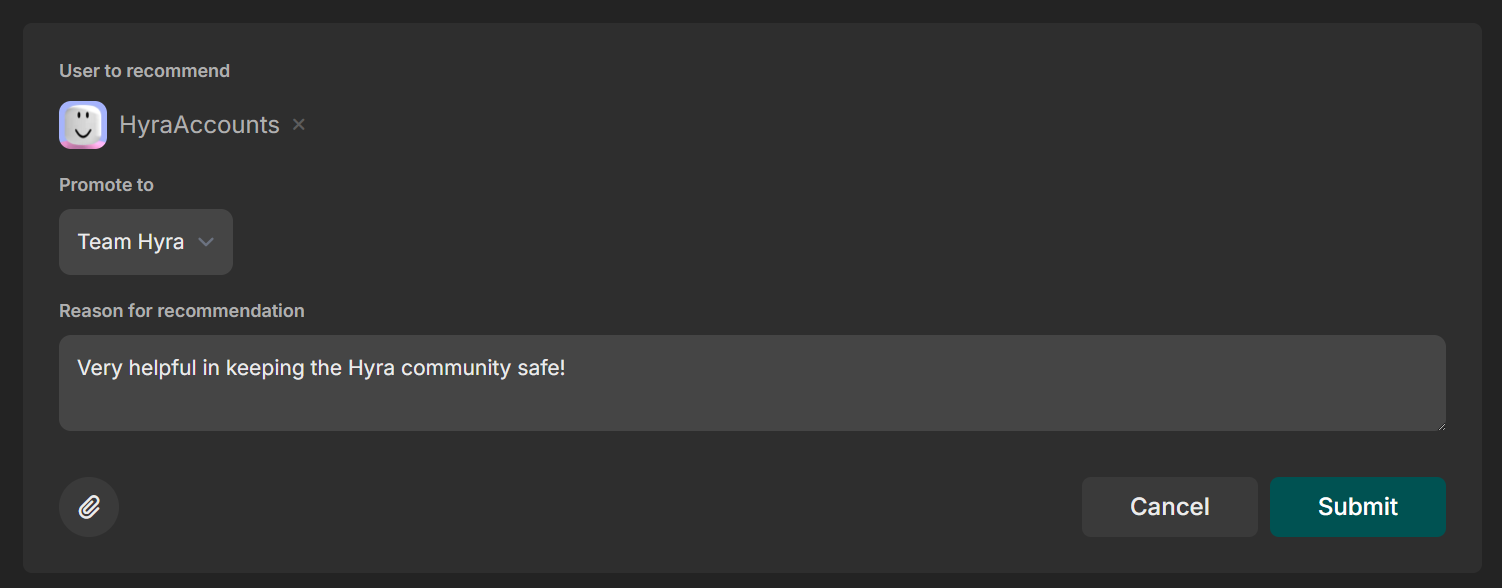 Hyra's Promotion Recommendation feature allows you to recommend staff members that have gone above and beyond to make the community better to high-ranking staff for a chance to get a promotion.
Before you get started, you’ll need the following permission: View Promotions Recommendations
## Limitations
To keep the page fair for everyone, we've set some limitations to prevent the feature from getting abused.
1. Staff members can only recommend promotions to the members in their Community and up to their current rank.
2. Staff members cannot see the promotion recommendations about themselves.
3. Staff members cannot remove their upvote on a promotion recommendation.
## Creating a Promotion Recommendation
To create a promotion recommendation, you can create the following steps below:
To continue, you'll need the following permission: Create Promotion Recommendations
To get started, you'll need to go to the Players tab in the sidebar and then click Promotions to reach the Promotions page.
In the page, click Create promotion recommendation then select which staff member to recommend.
Below the staff member, select which rank you believe the staff member should be promoted to.
To ensure that your recommendation will have a chance to get approved, please select the role that is feasible for someone to get promoted to.
Once you've selected the staff member to promote and their recommended role, you'll need to explain why did you choose this user. You can also upload attachments to support your reason.
When creating a reason, try and explain what makes the staff member a candidate for a promotion. Be sure to support your claims with factual evidence.
## Upvoting a Promotion Recommendation
To upvote a promotion recommendation, you can follow the steps below:
To continue, you'll need the following permission: Upvote Promotion Recommendations
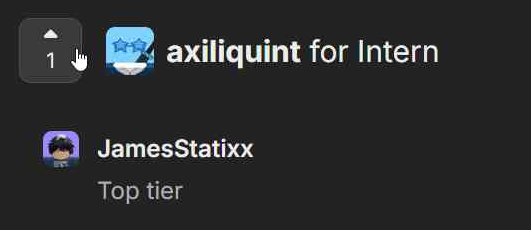
Click the Upvote button beside the username of a staff member.
Hyra's Promotion Recommendation feature allows you to recommend staff members that have gone above and beyond to make the community better to high-ranking staff for a chance to get a promotion.
Before you get started, you’ll need the following permission: View Promotions Recommendations
## Limitations
To keep the page fair for everyone, we've set some limitations to prevent the feature from getting abused.
1. Staff members can only recommend promotions to the members in their Community and up to their current rank.
2. Staff members cannot see the promotion recommendations about themselves.
3. Staff members cannot remove their upvote on a promotion recommendation.
## Creating a Promotion Recommendation
To create a promotion recommendation, you can create the following steps below:
To continue, you'll need the following permission: Create Promotion Recommendations
To get started, you'll need to go to the Players tab in the sidebar and then click Promotions to reach the Promotions page.
In the page, click Create promotion recommendation then select which staff member to recommend.
Below the staff member, select which rank you believe the staff member should be promoted to.
To ensure that your recommendation will have a chance to get approved, please select the role that is feasible for someone to get promoted to.
Once you've selected the staff member to promote and their recommended role, you'll need to explain why did you choose this user. You can also upload attachments to support your reason.
When creating a reason, try and explain what makes the staff member a candidate for a promotion. Be sure to support your claims with factual evidence.
## Upvoting a Promotion Recommendation
To upvote a promotion recommendation, you can follow the steps below:
To continue, you'll need the following permission: Upvote Promotion Recommendations
Click the Upvote button beside the username of a staff member.
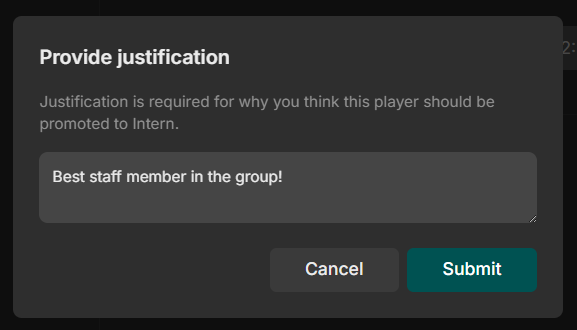
 Once clicked, it will ask you to provide a justification on why should the staff member be promoted to a specific role.
 Once done, you should be able to see your justification below with all of the staff member who upvoted the recommendation.
 ## Deleting a Promotion Recommendation
To continue, you'll need the following permission: Delete Promotion Recommendations
To delete a promotion recommendation, you can click the Delete Recommendation button beside the username of the staff member.
## Deleting a Promotion Recommendation
To continue, you'll need the following permission: Delete Promotion Recommendations
To delete a promotion recommendation, you can click the Delete Recommendation button beside the username of the staff member.
 Once a promotion recommendation has been deleted, it cannot be recovered.