> ## Documentation Index
> Fetch the complete documentation index at: https://docs.hyra.io/llms.txt
> Use this file to discover all available pages before exploring further.
# Joining Sessions
 ## Joining Sessions
Joining Sessions allow you to reserve your spot on the session and automatically logs your session for your assignments!
For claiming Host and Co-Host role, be sure that you have the following permission: Assign Host to Self (for Hosts), Assign Co-Host to Self (for Co-Hosts).
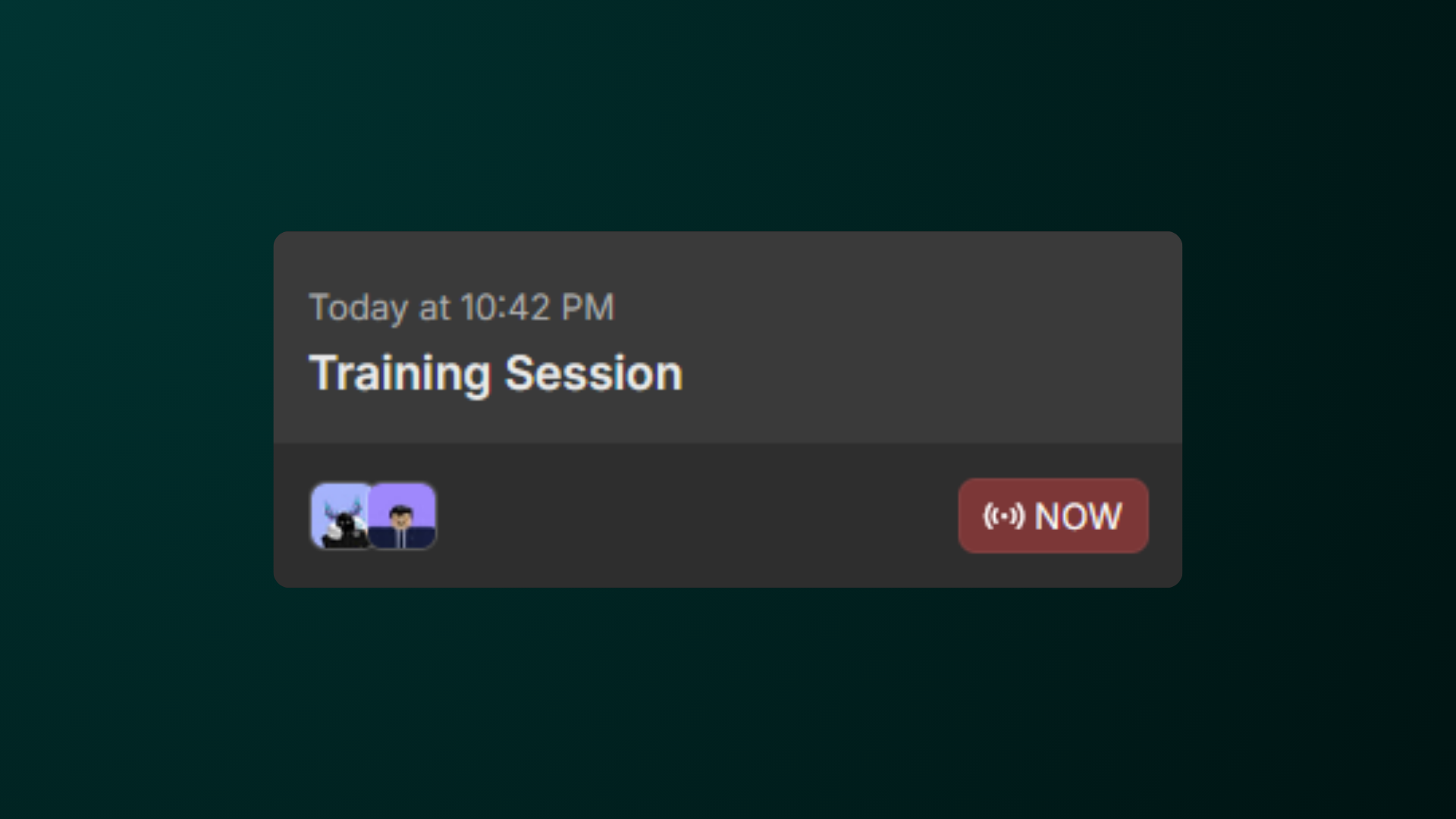
To first join a session, first go to the session calendar by going to Activity > Sessions.
In the Session Calendar, select a session that you want to join.
Please note that you can also to switch the day that you want to view by clicking on the week above.
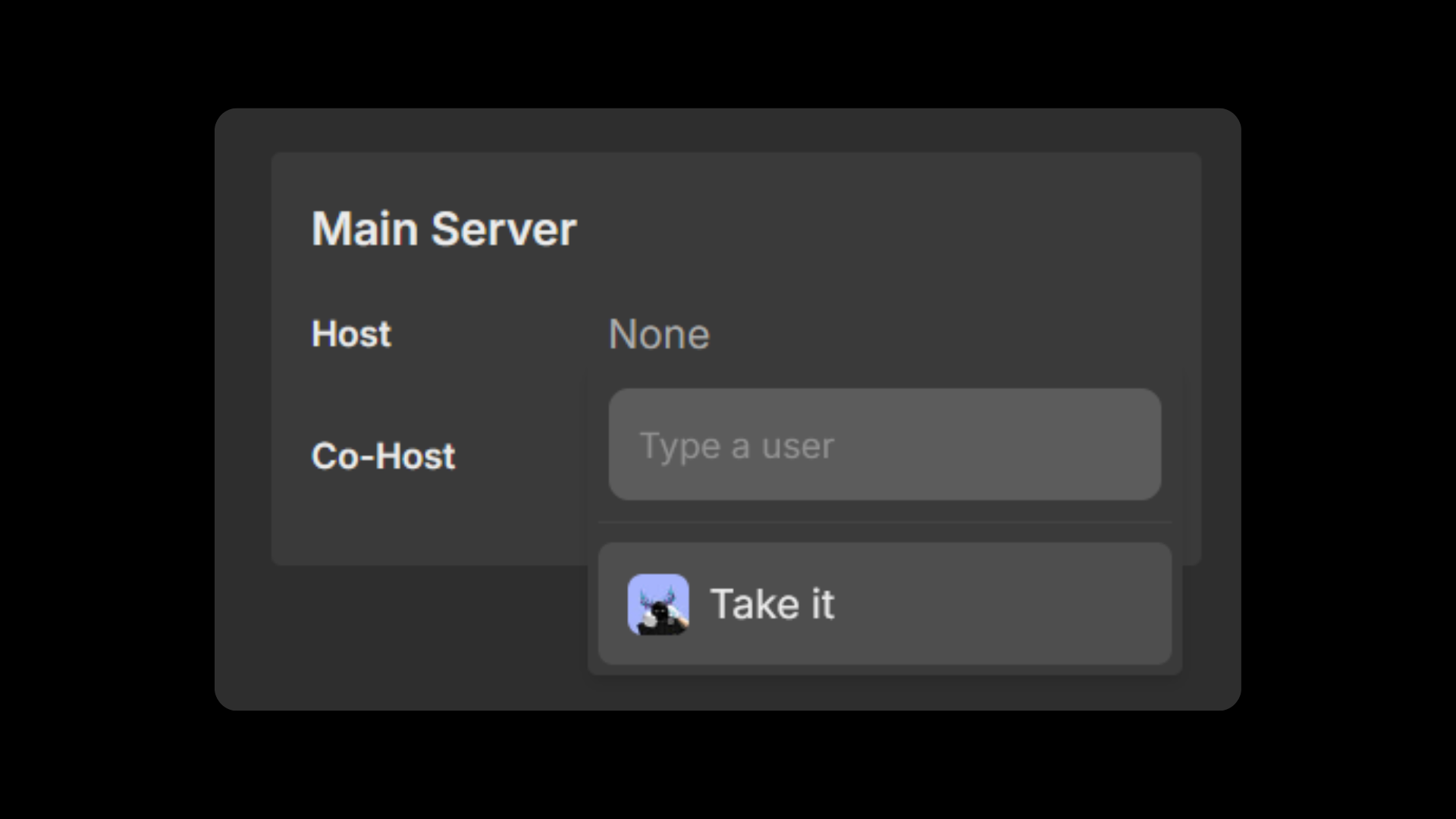
In the session, select a role that you want to join and hit "Take it" to take the role.
Can't see any servers? That may mean that this session doesn't have any servers as of now. Check back later if there's one available.
## Joining Sessions
Joining Sessions allow you to reserve your spot on the session and automatically logs your session for your assignments!
For claiming Host and Co-Host role, be sure that you have the following permission: Assign Host to Self (for Hosts), Assign Co-Host to Self (for Co-Hosts).
To first join a session, first go to the session calendar by going to Activity > Sessions.
In the Session Calendar, select a session that you want to join.
Please note that you can also to switch the day that you want to view by clicking on the week above.
In the session, select a role that you want to join and hit "Take it" to take the role.
Can't see any servers? That may mean that this session doesn't have any servers as of now. Check back later if there's one available.
 ## Assigning Roles to Other People
If you need to manually log staff into your session, you can manually assign them to the session too!
Before you continue, you will need one of the following permissions:
* Assign Host to other people (for Hosts)
* Assign Co-Host to other people (for Co-Hosts)
* Assign Roles to other people (for all roles)
First go to the session calendar by going to Activity > Sessions.
In the Session Calendar, select a session that you want to assign to someone.
Please note that you can also to switch the day that you want to view by clicking on the week above.
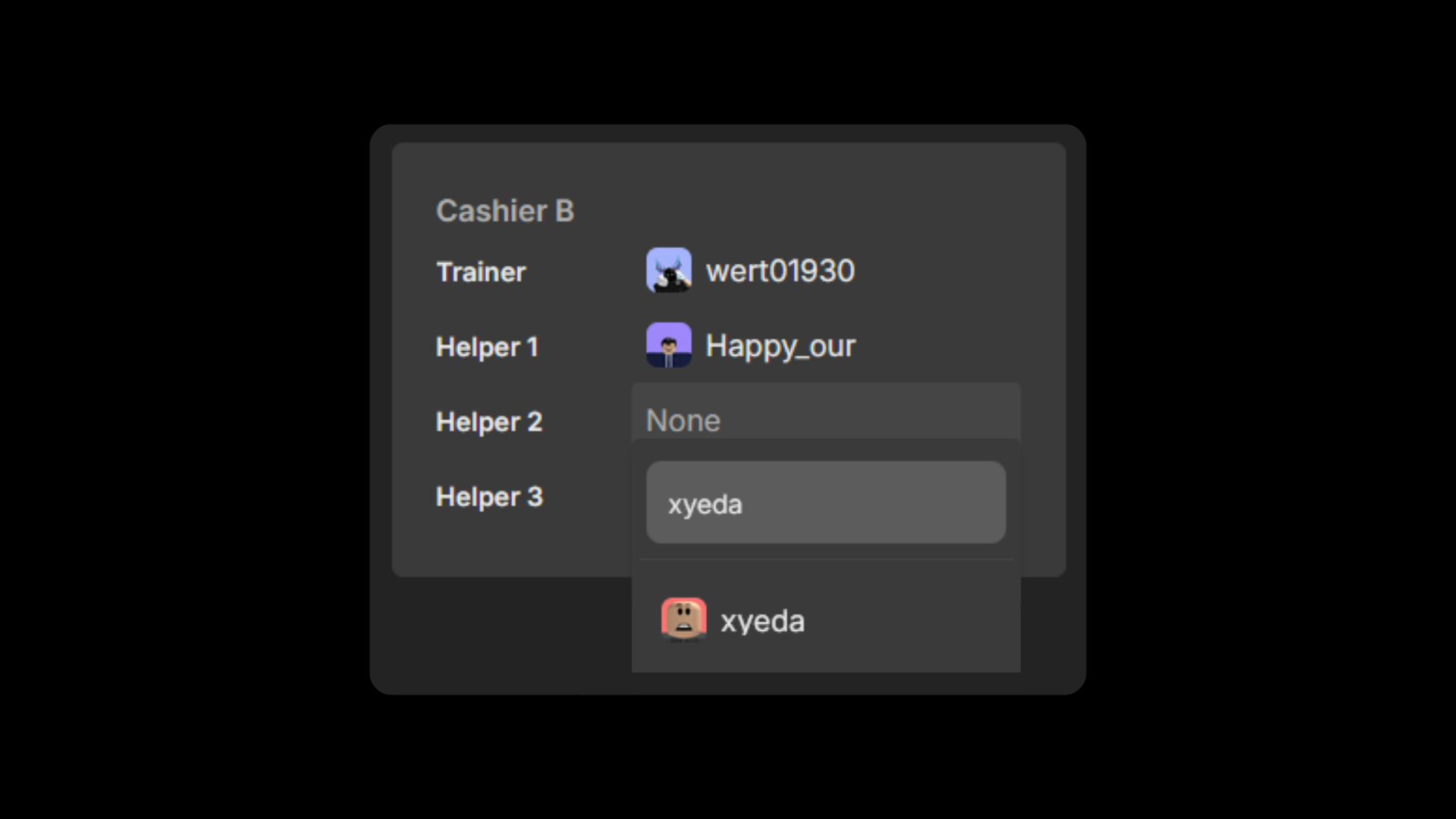
In the session, type in the username of the staff that you want to assign the role and hit their username. This should add them to the session.
## Assigning Roles to Other People
If you need to manually log staff into your session, you can manually assign them to the session too!
Before you continue, you will need one of the following permissions:
* Assign Host to other people (for Hosts)
* Assign Co-Host to other people (for Co-Hosts)
* Assign Roles to other people (for all roles)
First go to the session calendar by going to Activity > Sessions.
In the Session Calendar, select a session that you want to assign to someone.
Please note that you can also to switch the day that you want to view by clicking on the week above.
In the session, type in the username of the staff that you want to assign the role and hit their username. This should add them to the session.
 ## Creating an Adhoc Session
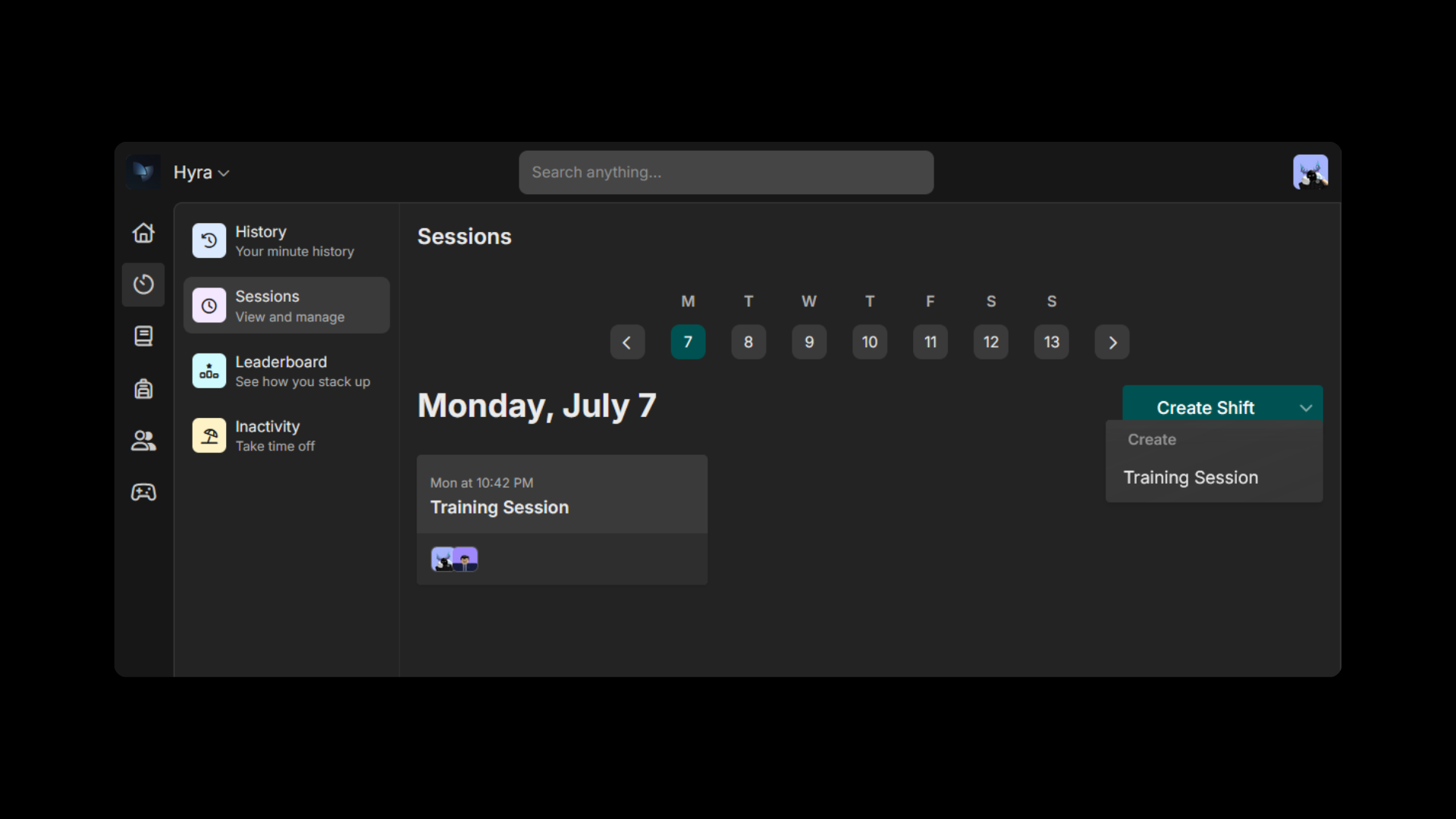
To create an adhoc session, go to the session calendar and click Create \[session name]. To find more options, click on the dropdown button on the right.
Before you continue, you will need the permission: Create Adhoc Sessions
## Creating an Adhoc Session
To create an adhoc session, go to the session calendar and click Create \[session name]. To find more options, click on the dropdown button on the right.
Before you continue, you will need the permission: Create Adhoc Sessions
 ## Cancelling a Session
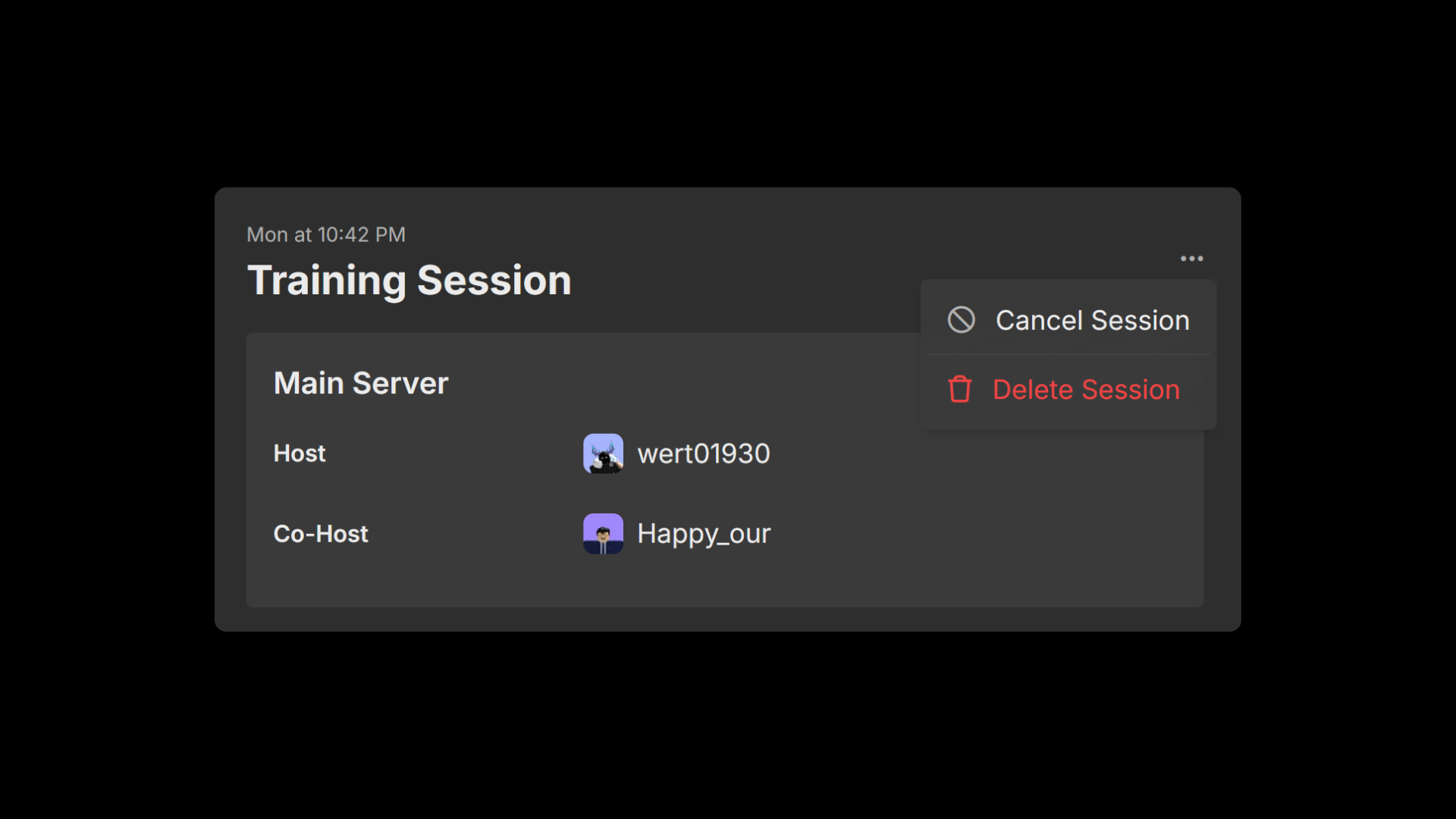
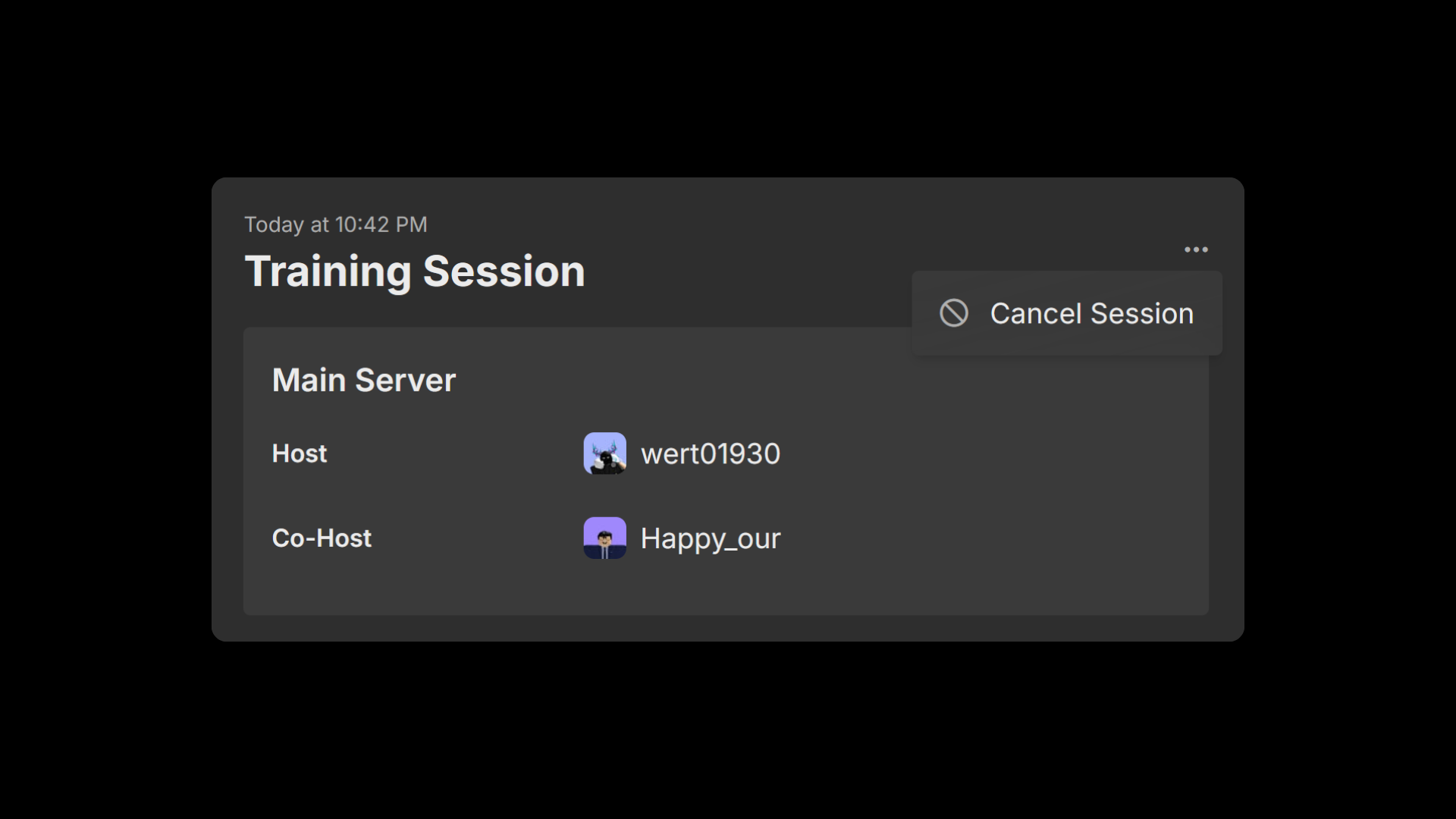
To cancel the session, simply click the three dots and select Cancel Session.
Before you continue, you will need the permission: Cancel Sessions
## Cancelling a Session
To cancel the session, simply click the three dots and select Cancel Session.
Before you continue, you will need the permission: Cancel Sessions
 ## Deleting a Session
The same goes to deleting a session, simply click the three dots and select Delete Session.
Before you continue, you will need the permission: Delete Sessions.
## Deleting a Session
The same goes to deleting a session, simply click the three dots and select Delete Session.
Before you continue, you will need the permission: Delete Sessions.
For Adhoc Sessions, you will need the permission: Delete Adhoc Sessions.