> ## Documentation Index
> Fetch the complete documentation index at: https://docs.hyra.io/llms.txt
> Use this file to discover all available pages before exploring further.
# Session Roles
> How to configure Session Roles in Hyra.
 ## What are Session Roles?
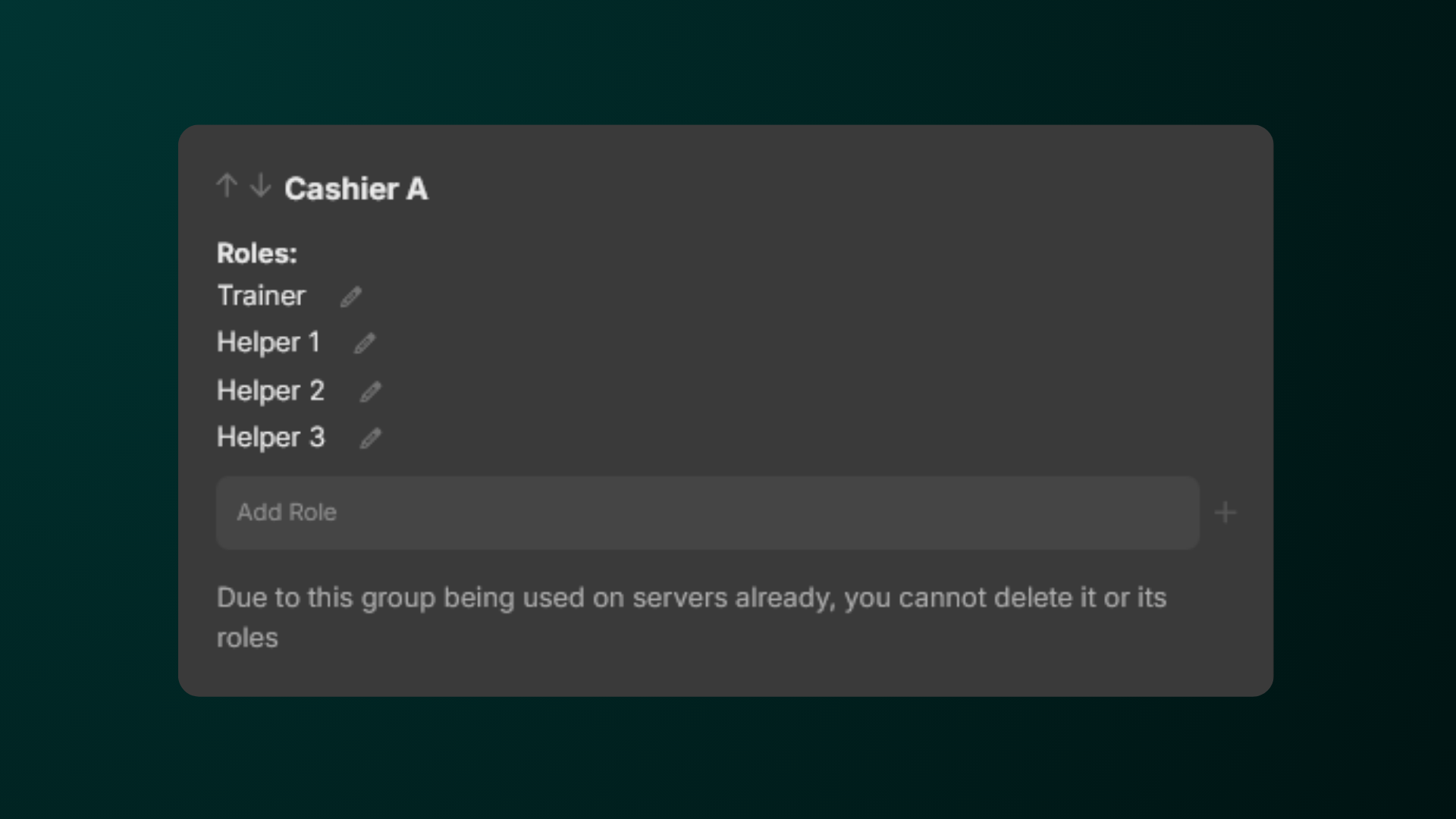
Roles are the foundation of attendance at sessions. They are available to be given to one staff member and are arranged into groups. For example, you might have a role group named 'Cashier A' with 1 trainer and 3 assistants beneath it.
## Configuring Session Roles
Before you continue, make sure you have the Workspace Admin permission in your Hyra workspace.
Please note that if a Role Group has been attached to a session, you cannot delete it or its roles
To create a role group, head over to Workspace Settings > Sessions > Role Groups.
Scroll to the bottom of the page and click Create a Group.
To create a role, click Add Role and type in the name of the role. We suggest adding numbers or letters to distinguish its roles in the session.
## What are Session Roles?
Roles are the foundation of attendance at sessions. They are available to be given to one staff member and are arranged into groups. For example, you might have a role group named 'Cashier A' with 1 trainer and 3 assistants beneath it.
## Configuring Session Roles
Before you continue, make sure you have the Workspace Admin permission in your Hyra workspace.
Please note that if a Role Group has been attached to a session, you cannot delete it or its roles
To create a role group, head over to Workspace Settings > Sessions > Role Groups.
Scroll to the bottom of the page and click Create a Group.
To create a role, click Add Role and type in the name of the role. We suggest adding numbers or letters to distinguish its roles in the session.