> ## Documentation Index
> Fetch the complete documentation index at: https://docs.hyra.io/llms.txt
> Use this file to discover all available pages before exploring further.
# Directory Profile
 ## What are Directory Profile?
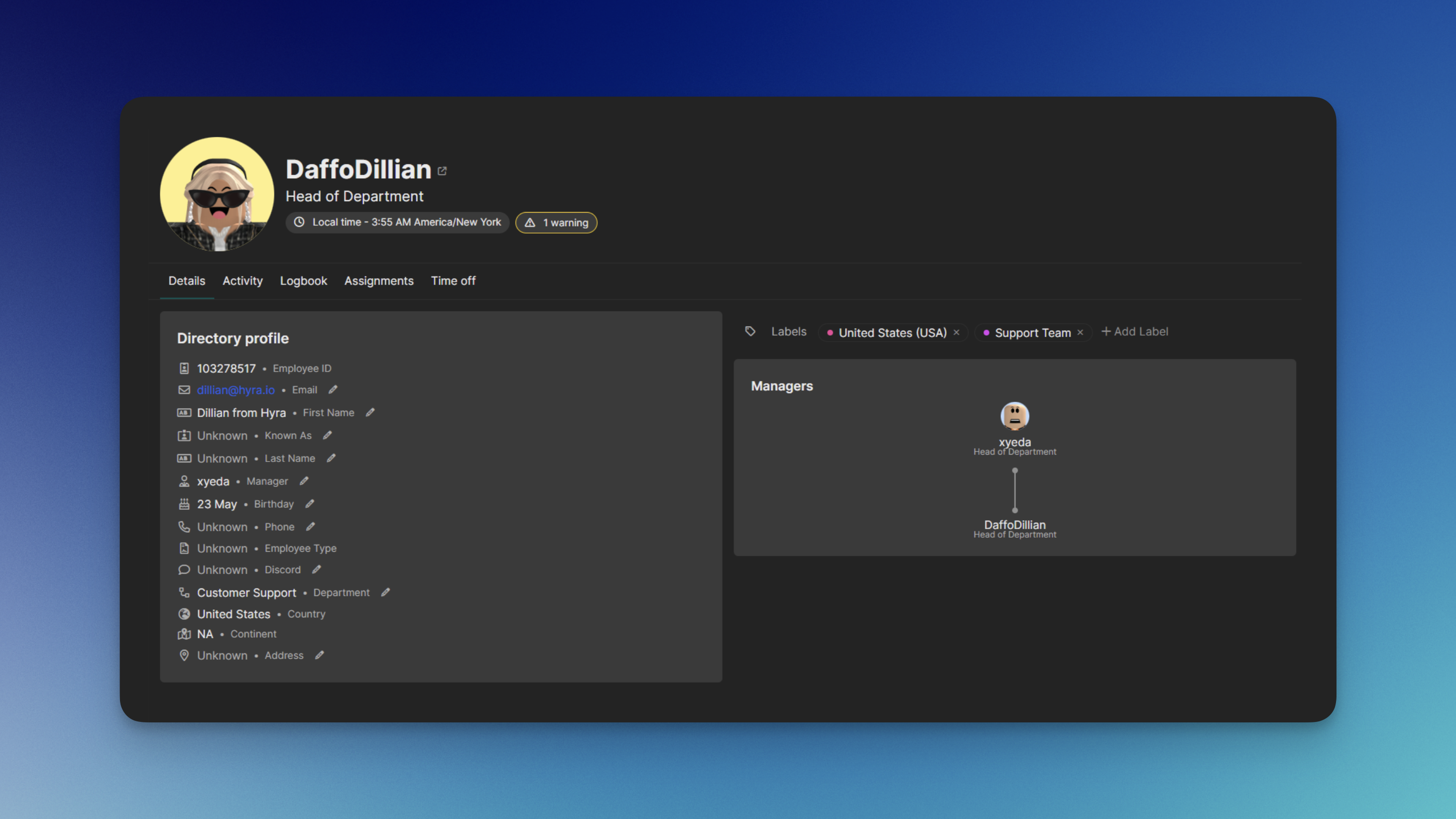
Directory Profile on Hyra are how workspace admins can view information about each of their employees. This includes their personal details, activity, logs, and current assignments.
Their purpose is to serve each community with the best possible staff management to quickly and effectively take charge.
In this article, we will only be tackling how to view and edit the Details tab. For other tabs, please head into their specific tabs.
## Viewing Directory Profile
To continue, you'll need the following permission: View Other Staff
To view the profile of someone, firstly, go to Activity. In Activity, you can search the staff for their Directory Profile.
There's two ways on searching the staff:
* You can search the user by clicking Ctrl + K (For Windows) or Cmd + K (for Mac) and typing their username in Search.
* You can also find them Views and hit the Open button.
## Editing Directory Profile
In order to do this, you must have the following permission: View Other Staff and Edit Staff Details
To edit a property in a staff's directory profile, go to the staff's directory profile and beside the property, you can hit the pencil icon to edit.
## What are Directory Profile?
Directory Profile on Hyra are how workspace admins can view information about each of their employees. This includes their personal details, activity, logs, and current assignments.
Their purpose is to serve each community with the best possible staff management to quickly and effectively take charge.
In this article, we will only be tackling how to view and edit the Details tab. For other tabs, please head into their specific tabs.
## Viewing Directory Profile
To continue, you'll need the following permission: View Other Staff
To view the profile of someone, firstly, go to Activity. In Activity, you can search the staff for their Directory Profile.
There's two ways on searching the staff:
* You can search the user by clicking Ctrl + K (For Windows) or Cmd + K (for Mac) and typing their username in Search.
* You can also find them Views and hit the Open button.
## Editing Directory Profile
In order to do this, you must have the following permission: View Other Staff and Edit Staff Details
To edit a property in a staff's directory profile, go to the staff's directory profile and beside the property, you can hit the pencil icon to edit.