> ## Documentation Index
> Fetch the complete documentation index at: https://docs.hyra.io/llms.txt
> Use this file to discover all available pages before exploring further.
# Roles
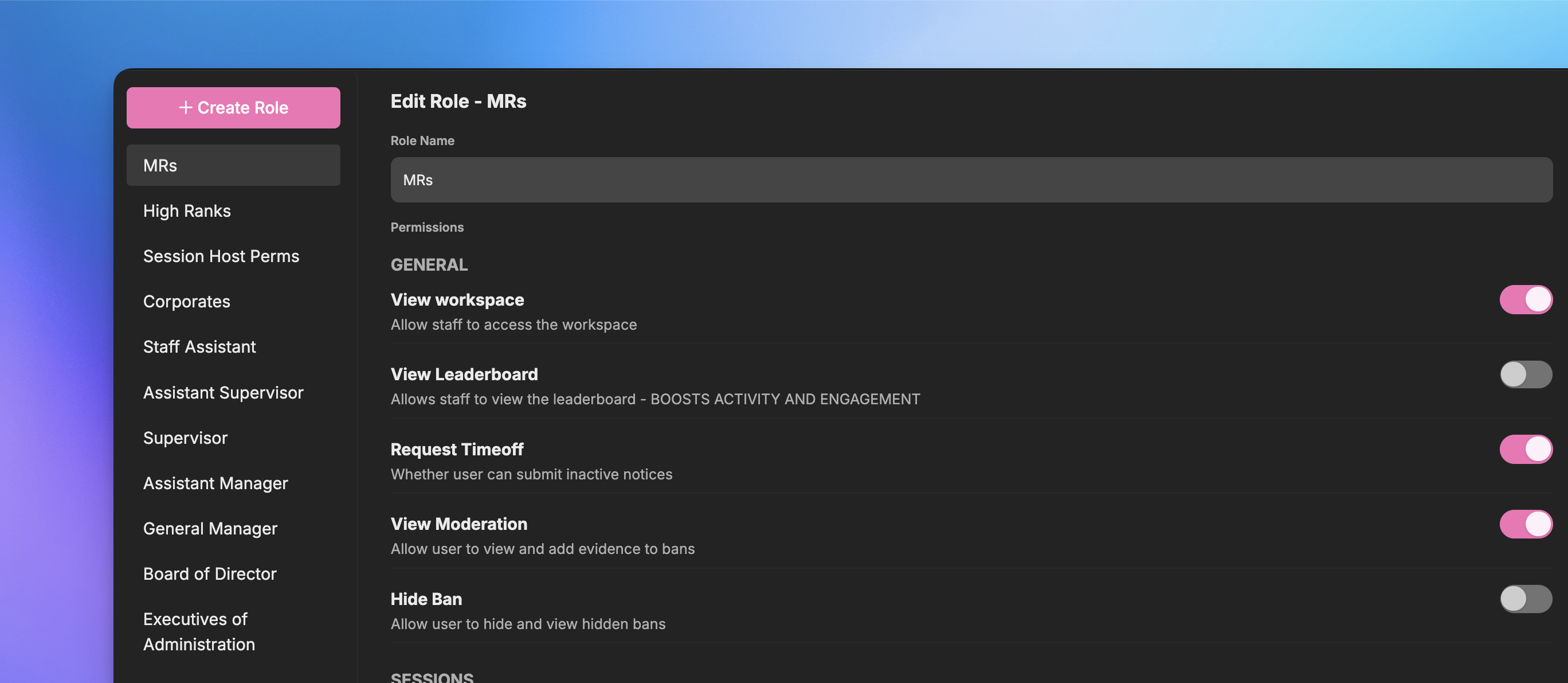 Roles allow you to give permissions to your team to access your workspace, create private categories in Knowledge Base, and many many more.
## Creating a Role
To create a role, follow the steps below:
To continue, you'll need the following permission: Workspace Admin
Firstly, go to the Roles Page by going to Settings > Roles.
Click Create Role in the top and it should create a role named "new role".
After creating a role, you'll need to give it permissions. To give it permissions, just toggle the switch located on the right side of the permission.
In order for a staff to access the workspace, they must have at least one permission.
Once the permissions have been selected, scroll down until you see Assigned Group Roles and Manual Members.
For Asisgned Group Roles, select which roles by switching the toggle on or off will recieve the role and its permissions. For Manual Members, you'll need to manually type their usernames and select from the dropdown.
Be sure to hit Save to save your role!
### Administrative Permissions
Some permissions can cause harm to your workspace if given to a bad actor. Here's the list of all levels of permissions:
The permissions below can be given to everyone without harming your workspace:
* View Workspace
* Request timeoff
* View Knowledge Library
* View Orders
* View Leaderboard
**For Promotion Recommendation:**
* View Promotions Recommendation
* Create Promotion Recommendations
* Upvote Promotion Recommendations
For Sessions:
* Assign Host to Self (for Hosts)
* Assign Co-Host to Self (for Co-Hosts)
* Create New Server (for Hosts and Co-Hosts)
* Change Week on Calendar
If you want the staff to access the workspace, enable View Workspace. This will also allow you to give more permissions to the staff.
The permissions below are usually reserved to your Human Resources Department or higher-ranking staff. We won't suggest giving these permissions to your staff.
* View Other Staff
* Manage timeoff Requests
* View Logbook History
* Post to Logbook
* View Orders and Players Tab
For Sessions:
* Assign host to other people
* Assign Co-Host to other people
* Assign Roles to other people
The permissions below are usually reserved to your Head of Human Resources and highest-ranking staff members. These permissions can cause harm to your workspace if given to a bad actor.
* Update Knowledge Library
* Edit Views
* Add/Remove Minutes on Staff
* Edit Staff Details
* Delete Promotion Recommendations
* Workspace Admin (dangerous permission)
Please do note that it's up to you to decide whether they will gonna need the permission. These are only our suggestions to help you on deciding if a permission should be given to everyone, or to only a handful of people.
### Dependent Permissions
Some permissions are hidden because they are dependent to a parent permission. This means in order for them to be given, they will need their parent to be enabled first.
Below is the list of all parent permissions:
* View Workspace
* View Knowledge Library
* View Other Staff
* View Orders and Players tab
* View Promotions Recommendations
Roles allow you to give permissions to your team to access your workspace, create private categories in Knowledge Base, and many many more.
## Creating a Role
To create a role, follow the steps below:
To continue, you'll need the following permission: Workspace Admin
Firstly, go to the Roles Page by going to Settings > Roles.
Click Create Role in the top and it should create a role named "new role".
After creating a role, you'll need to give it permissions. To give it permissions, just toggle the switch located on the right side of the permission.
In order for a staff to access the workspace, they must have at least one permission.
Once the permissions have been selected, scroll down until you see Assigned Group Roles and Manual Members.
For Asisgned Group Roles, select which roles by switching the toggle on or off will recieve the role and its permissions. For Manual Members, you'll need to manually type their usernames and select from the dropdown.
Be sure to hit Save to save your role!
### Administrative Permissions
Some permissions can cause harm to your workspace if given to a bad actor. Here's the list of all levels of permissions:
The permissions below can be given to everyone without harming your workspace:
* View Workspace
* Request timeoff
* View Knowledge Library
* View Orders
* View Leaderboard
**For Promotion Recommendation:**
* View Promotions Recommendation
* Create Promotion Recommendations
* Upvote Promotion Recommendations
For Sessions:
* Assign Host to Self (for Hosts)
* Assign Co-Host to Self (for Co-Hosts)
* Create New Server (for Hosts and Co-Hosts)
* Change Week on Calendar
If you want the staff to access the workspace, enable View Workspace. This will also allow you to give more permissions to the staff.
The permissions below are usually reserved to your Human Resources Department or higher-ranking staff. We won't suggest giving these permissions to your staff.
* View Other Staff
* Manage timeoff Requests
* View Logbook History
* Post to Logbook
* View Orders and Players Tab
For Sessions:
* Assign host to other people
* Assign Co-Host to other people
* Assign Roles to other people
The permissions below are usually reserved to your Head of Human Resources and highest-ranking staff members. These permissions can cause harm to your workspace if given to a bad actor.
* Update Knowledge Library
* Edit Views
* Add/Remove Minutes on Staff
* Edit Staff Details
* Delete Promotion Recommendations
* Workspace Admin (dangerous permission)
Please do note that it's up to you to decide whether they will gonna need the permission. These are only our suggestions to help you on deciding if a permission should be given to everyone, or to only a handful of people.
### Dependent Permissions
Some permissions are hidden because they are dependent to a parent permission. This means in order for them to be given, they will need their parent to be enabled first.
Below is the list of all parent permissions:
* View Workspace
* View Knowledge Library
* View Other Staff
* View Orders and Players tab
* View Promotions Recommendations