> ## Documentation Index
> Fetch the complete documentation index at: https://docs.hyra.io/llms.txt
> Use this file to discover all available pages before exploring further.
# Time Off
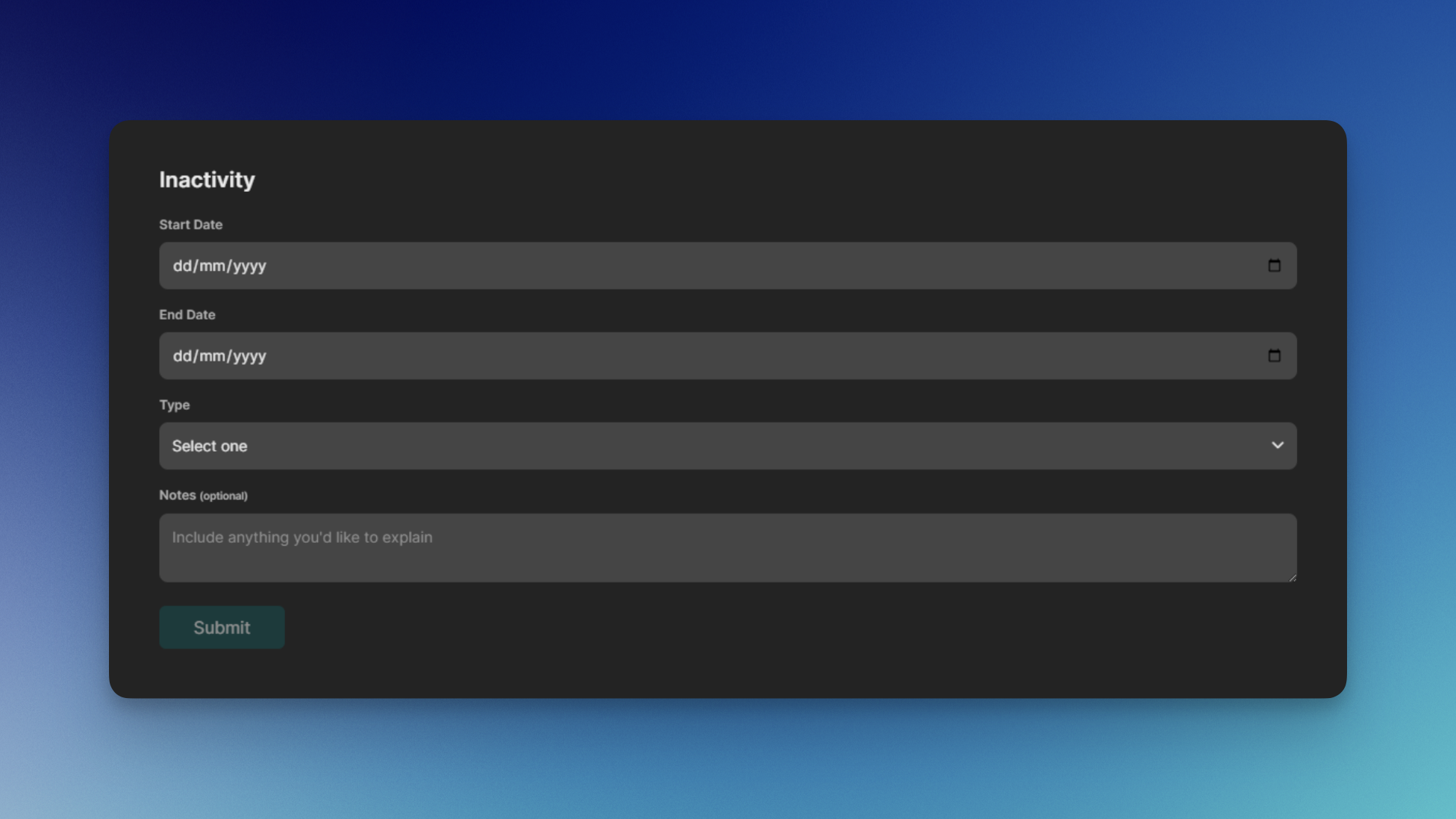 Hyra's Time Off feature allows your staff to file an Inactivity Notice that let your department know that they will be gone for some time.
## Creating an Inactive Notices
To create an Inactive Notice, follow the steps below:
To continue, you'll need the following permission: Request Timeoff
Firstly, go to the Inactivity Page by going to Activity > Inactivity.
Fill in all of the required fields, from when will it start and end, type of inactivity, and notes.
You can use the notes field as a space to add your reason or give extra info about your notice.
Once you've hit Submit, it will show up as Pending status. You can also cancel the notice by clicking Cancel.
If your notice got accepted, it will show up as Approved.
## Managing Inactive Notices
Keeping track of inactive notices is an important part of managing staff time off and absence requests. Follow the steps below to manage inactive notices:
To continue, you will need the following permission: View Other Staff and Manage timeoff requests
Firstly, go to the Timeoff Page by going to Staff > Timeoff.
Here you will see the staff that are out of office and all of the pending requests below it.
To accept a time off request, click Accept. To deny a request, select Deny.
## Viewing Staff
You can also see if the staff is out of office by looking at the icon next to their username in Views.
Hyra's Time Off feature allows your staff to file an Inactivity Notice that let your department know that they will be gone for some time.
## Creating an Inactive Notices
To create an Inactive Notice, follow the steps below:
To continue, you'll need the following permission: Request Timeoff
Firstly, go to the Inactivity Page by going to Activity > Inactivity.
Fill in all of the required fields, from when will it start and end, type of inactivity, and notes.
You can use the notes field as a space to add your reason or give extra info about your notice.
Once you've hit Submit, it will show up as Pending status. You can also cancel the notice by clicking Cancel.
If your notice got accepted, it will show up as Approved.
## Managing Inactive Notices
Keeping track of inactive notices is an important part of managing staff time off and absence requests. Follow the steps below to manage inactive notices:
To continue, you will need the following permission: View Other Staff and Manage timeoff requests
Firstly, go to the Timeoff Page by going to Staff > Timeoff.
Here you will see the staff that are out of office and all of the pending requests below it.
To accept a time off request, click Accept. To deny a request, select Deny.
## Viewing Staff
You can also see if the staff is out of office by looking at the icon next to their username in Views.